How to create a macro in Windows 11
A macro is “when this happens, do these steps”. In Doable Macros you pick both from a list, with no script to write.
The short answer
Windows 11 has no macro builder in Settings. It comes with Power Automate for desktop, Microsoft’s RPA app, which needs you to sign in and suits long processes better than quick macros (how they compare). For everyday macros, install a macro app, choose what starts the macro (a typed abbreviation, a keyboard shortcut or an app), add the steps it should do, and save. With Doable Macros that takes about a minute, and the example below turns ;addr into a full postal address in any app.
Seven steps, from install to stop
-
Install Doable Macros
Get Doable Macros from the Microsoft Store. It is free for up to 10 macros, with every feature, and runs on Windows 11, 64-bit. There is no account to make.
-
Open it and read the first-run notice
The first window says what the app reads on your PC and why. It also offers to start with Windows, so your macros work right after you sign in. That box starts unticked; tick it if you want it, or turn it on later in Settings.
-
Click New macro and name it
Click New macro at the bottom left and type a name, such as Address. Macros live in groups, and a group works in every app or only in the apps you choose.
-
Choose what starts it
Under Start this macro, pick When I type and enter an abbreviation such as ;addr, and keep Delete what I typed ticked. Or pick When I press a shortcut, an app opening, closing or coming to the front, copying something, or Only from the Run menu.
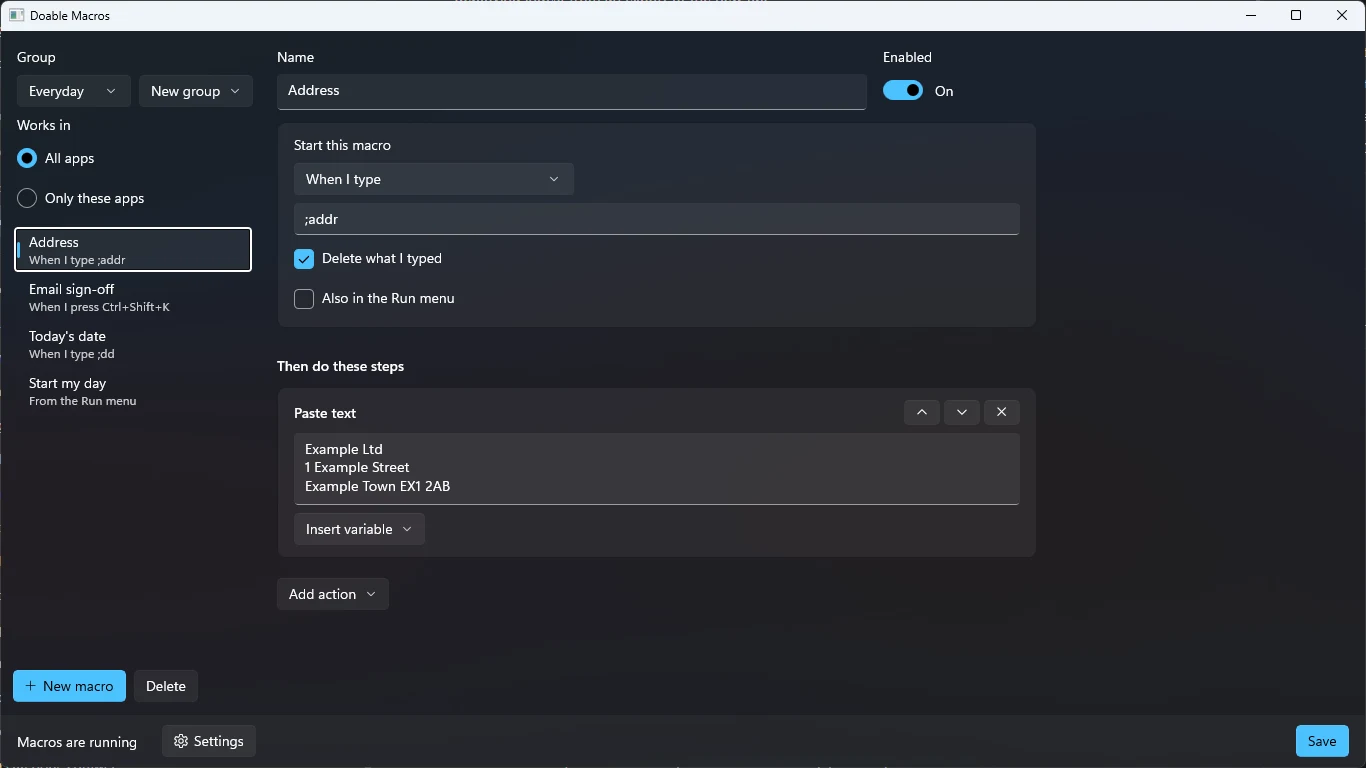
-
Add the steps
Under Then do these steps, click Add action and pick a step: Type text, Paste text, Press keys, Click in an app, Open an app, Open a file or web page, Wait or Show a notification. Steps run top to bottom; the arrows move a step up or down. Insert variable adds {date}, {time} or {clipboard} to text.
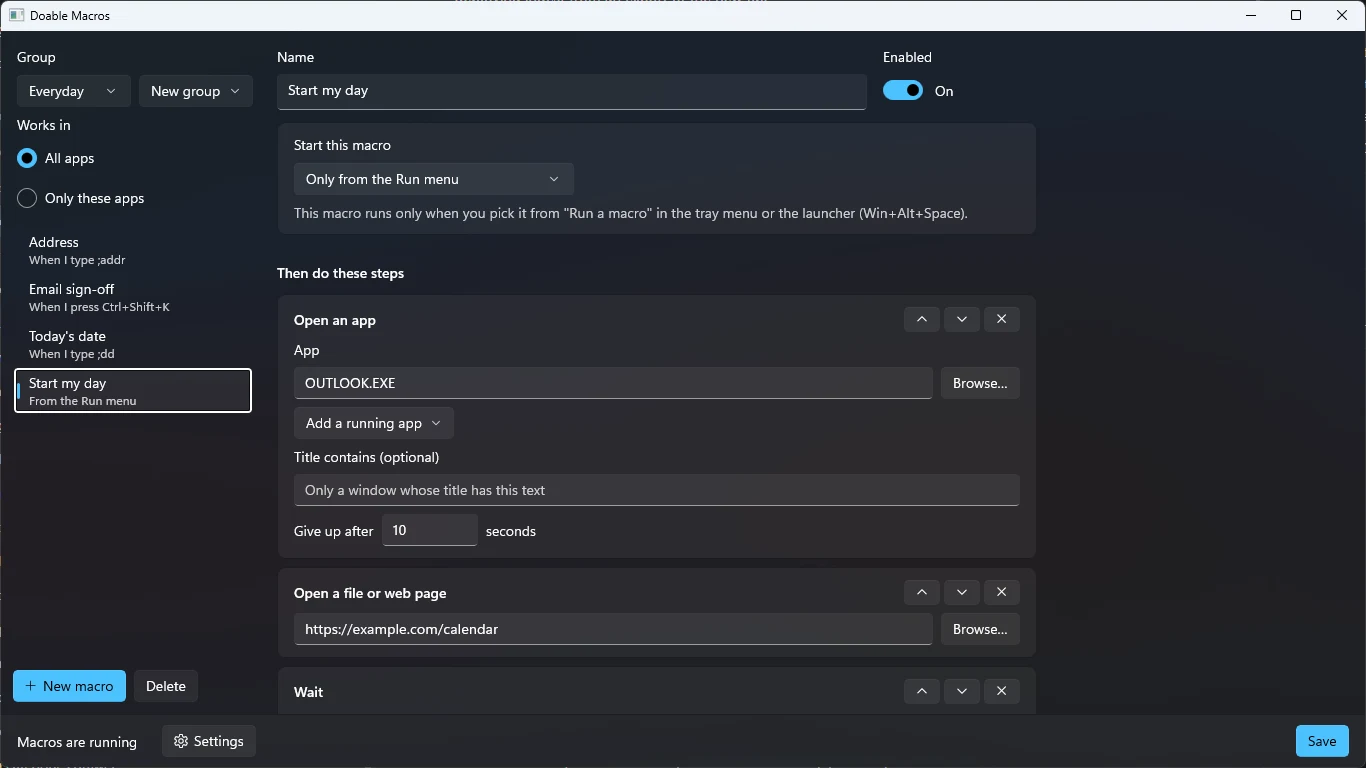
-
Save and try it
Click Save. While the background part is on, the bar at the bottom reads Macros are running. Go to any app and type ;addr: the abbreviation is deleted and the address appears in its place.
-
Stop a macro when you need to
Press Ctrl+Alt+Esc to stop the running macro and clear the queue. Pushing the mouse pointer into a corner of the screen, or Stop all macros in the tray menu, does the same.
Macros worth making first
| Email sign-off | Press Ctrl+Shift+K, then Type text: your name and title. |
|---|---|
| Today’s date | Type ;dd, then Type text: {date:yyyy-MM-dd}. |
| Start my day | From the Run menu: open Outlook, open your calendar page, then wait. |
| Send and file | In Outlook only, press Ctrl+Alt+Enter, then Click in an app: the Send button, found by its name. |
| Open the link I copied | Copy a link, run the macro from the launcher (Win+Alt+Space): Open a file or web page with {clipboard}. |
What a macro can’t do here
- Type or click in apps that run as administrator, on the lock screen or in Windows security prompts.
- Recognise images on the screen.
- Use loops, if/else or a scripting language. For those, AutoHotkey is a free scripting language.
- Match abbreviations on non-Latin keyboard layouts. Abbreviations are matched exactly, and capital letters count.